Workspaces
What Are Workspaces?
Workspaces allow you to group and manage your tabs efficiently.
For example, if you create a workspace named "Shopping", all tabs within that workspace will belong to the "Shopping" group.
Similarly, if you create another workspace named "Blog", all tabs within that workspace will belong to the "Blog" group.
Only one workspace can be displayed per window at a time.
By grouping tabs in this manner, the number of visible tabs is greatly reduced, resulting in a cleaner interface and improved browsing efficiency.
Tabs in inactive workspaces remain open in the background, ensuring that your entered data is never lost.
As of version 12.14.2, workspace structures are shared across the same profile, but individual tabs are not shared.
How to Use Workspaces
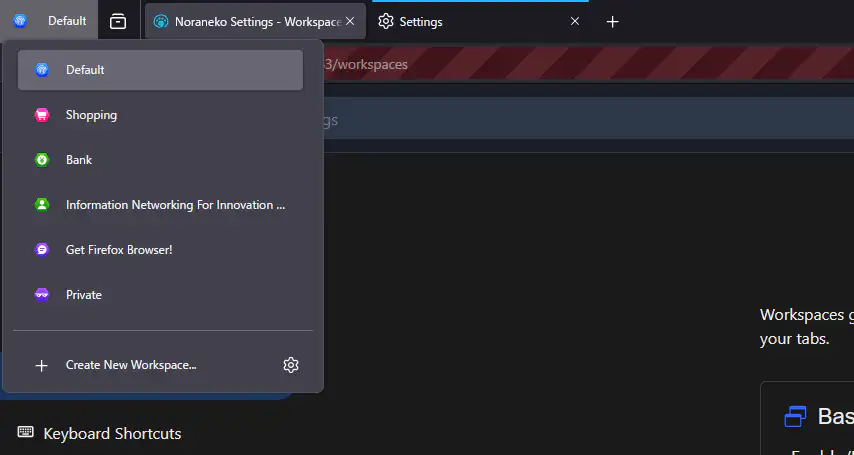
Clicking the toolbar button as shown in the image will display the workspace management panel.
By default, a workspace named "New Workspace (0)" is automatically created. The currently active workspace will be highlighted.
You can add another workspace by clicking "Create New Workspace...".
Managing Workspaces
To rename or customize a workspace, right-click the specific workspace in the workspace management panel and select "Manage Workspace".
You can also customize your currently active workspace by clicking the gear icon in the bottom-right corner.
Archiving Workspaces
Right-click a workspace and select "Archive" to remove it and its tabs from the main list.
You can view your previously archived workspaces at any time by clicking the folder icon in the bottom-right corner of the workspace management panel.
About Workspace Containers
Introduced in Floorp 11.4.0, this feature allows you to pre-assign Firefox's Multi-Account Containers to a specific workspace.
As described in "How to Use Workspaces", right-click the specific workspace in the workspace management panel and select "Manage Workspace".
You can then select your preferred container from the "Container" dropdown menu inside the management panel.
For more information regarding container tabs, please refer to the official Mozilla documentation.
Customizing Workspaces
Navigate to Floorp Hub > Workspaces (about:hub#/features/workspaces) to access additional settings.
-
Close workspace popup when selecting a workspace
Enabled by default. Controls whether the workspace popup panel automatically closes after you select a workspace.
-
Show workspace name next to the icon
Enabled by default. Configures whether the workspace name is displayed next to the workspace button on your toolbar.
-
Exit Floorp when last workspace tab is closed
Disabled by default. Configures whether to close the entire window when all tabs within the workspace are closed.
-
Manage workspaces on Floorp sidebar
Disabled by default. Displays your workspace list directly inside the Panel Sidebar for rapid switching. Note that some features available in the toolbar popup are not supported in this mode.
-
Reset workspaces
Resets your workspace data to its default state.
All custom workspaces will be deleted, and all existing tabs will be reassigned to a default new workspace. This action cannot be undone.