Keyboard Shortcuts and Command Palette
Browsing with Just Your Keyboard
Floorp allows you to override existing keyboard shortcuts with your preferred actions or assign completely new ones.
Having to reach for the mouse while typing can disrupt your workflow, which many users find frustrating.
Imagine how seamless it would be to control every single browser action using only your keyboard. While Floorp hasn't reached that absolute pinnacle just yet, we are dedicated to helping you get as close to it as possible. Customizable keyboard shortcuts and the Command Palette are major steps toward that goal.
Customizing Keyboard Shortcuts
Configuring via Floorp Hub
Navigate to Floorp Hub > Keyboard Shortcuts (about:hub#/features/shortcuts) to view a comprehensive list of actions available for shortcut customization.
Find the action you want to modify, and click "Add" or "Edit" to open the shortcut configuration overlay.
You can build your custom shortcut combination by selecting the modifier keys using the buttons at the top and typing a character in the input field below.
Depending on your operating system and configuration, the modifier key labels may appear as generic terms.
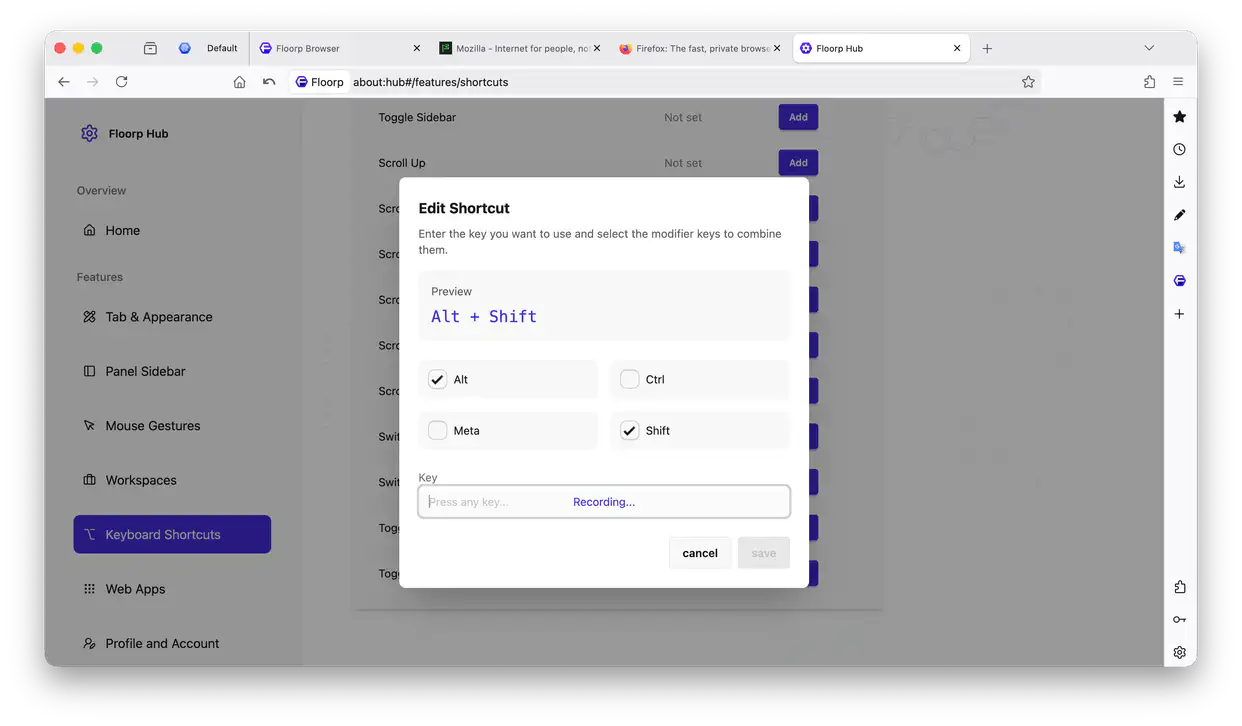
The vast majority of actions available for keyboard shortcuts, mouse gestures, and the command palette share the same underlying system.
This means that most actions you can assign to a keyboard shortcut can also be triggered via a mouse gesture or searched for in the command palette.
Configuring via Firefox Features
Firefox officially provides a feature to customize keyboard shortcuts.
Look for Settings > Tabs and browsing > Keyboard shortcuts, or type about:keyboard directly into the address bar to open a list of actions whose keyboard shortcuts can be configured.
Shortcuts for Floorp-specific features are only provided in Floorp Hub's Keyboard Shortcut settings.
The about:keyboard page may conflict with Floorp's keyboard shortcut feature. If a setting exists in both about:keyboard and Floorp Hub, please use only one of them.
Using the Command Palette
To use the Command Palette, either keyboard shortcuts or mouse gestures must be enabled.
When keyboard shortcuts are active, the Command Palette is assigned to the F2 key by default.
Simply type to search for an action, navigate through the results using the arrow keys or your mouse, and press Enter or Return to execute it. Depending on the specific action, you may occasionally be prompted for multiple sequential inputs.
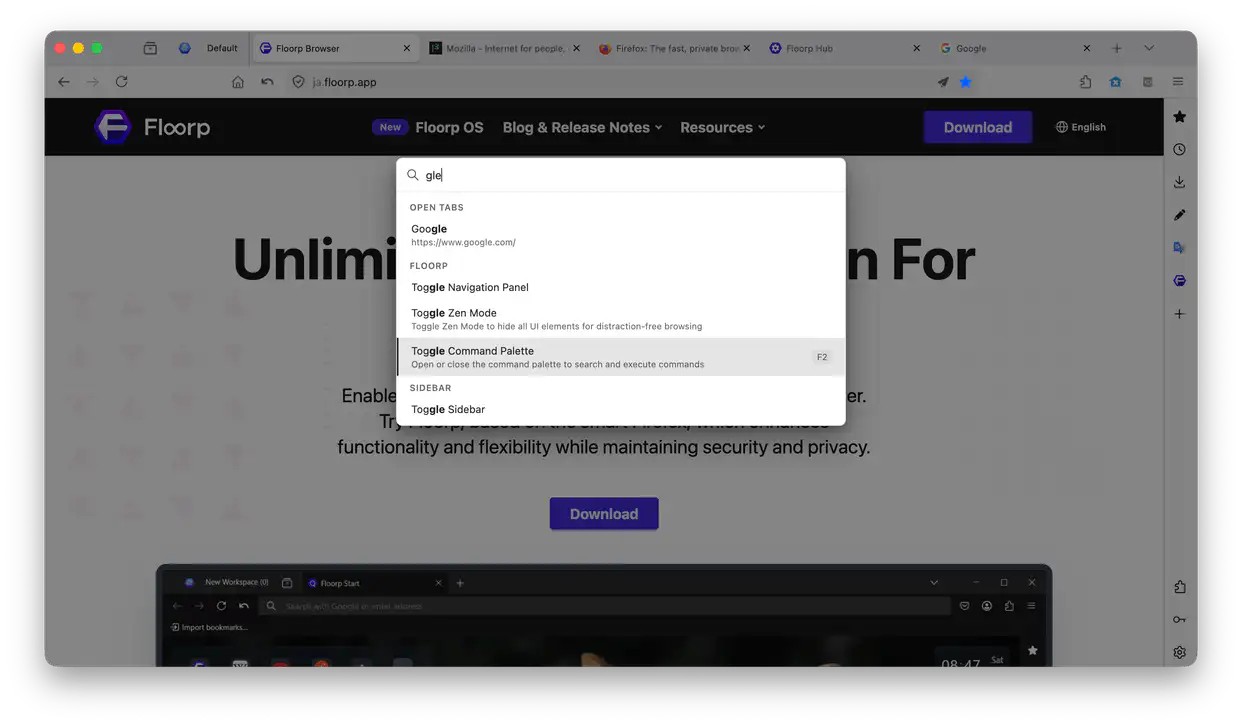
Command Palette Features
The Command Palette offers a wide variety of functions. Here, we'll introduce some of its standout commands.
-
Navigation
Manage tabs, open URLs, select recently closed windows, search browsing history, and more.
tipFor commands like "Open URL", "Search the Web", and "Browse History", you can either select the command first and then type your query, or type your query first and then select the command.
-
Floorp Features
Open Floorp Hub, open in Split View, switch workspaces, copy URLs in Markdown format, and more.
Configuring the Command Palette
-
Category Priority
Reorder the display priority of commands by category when opening the Command Palette.
-
Dynamic Search
Select which items appear as suggestions while typing in the Command Palette.