Floorp Start and Floorp Hub
Where Your Floorp Experience Begins
Do you remember Floorp's initial setup onboarding?
Among the various feature introductions, you might recall an explanation about a centralized configuration page called "Floorp Hub."
If you are already familiar with Firefox, you might also have been surprised by the distinct appearance of the new tab page when you first opened it in Floorp.
Floorp includes several custom internal pages designed to enhance your workflow. This article introduces two of these core internal pages: Floorp Start and Floorp Hub.
Getting Started with Floorp Start
Floorp Start serves as the default new tab page in Floorp. Its most prominent feature is the background image, which changes randomly every time you open a new tab.
Clicking the search bar in the center of the page will automatically shift focus to the main address bar at the top of the browser window.
To open the configuration overlay for Floorp Start, simply click the gear icon located in the bottom-right corner of the page.
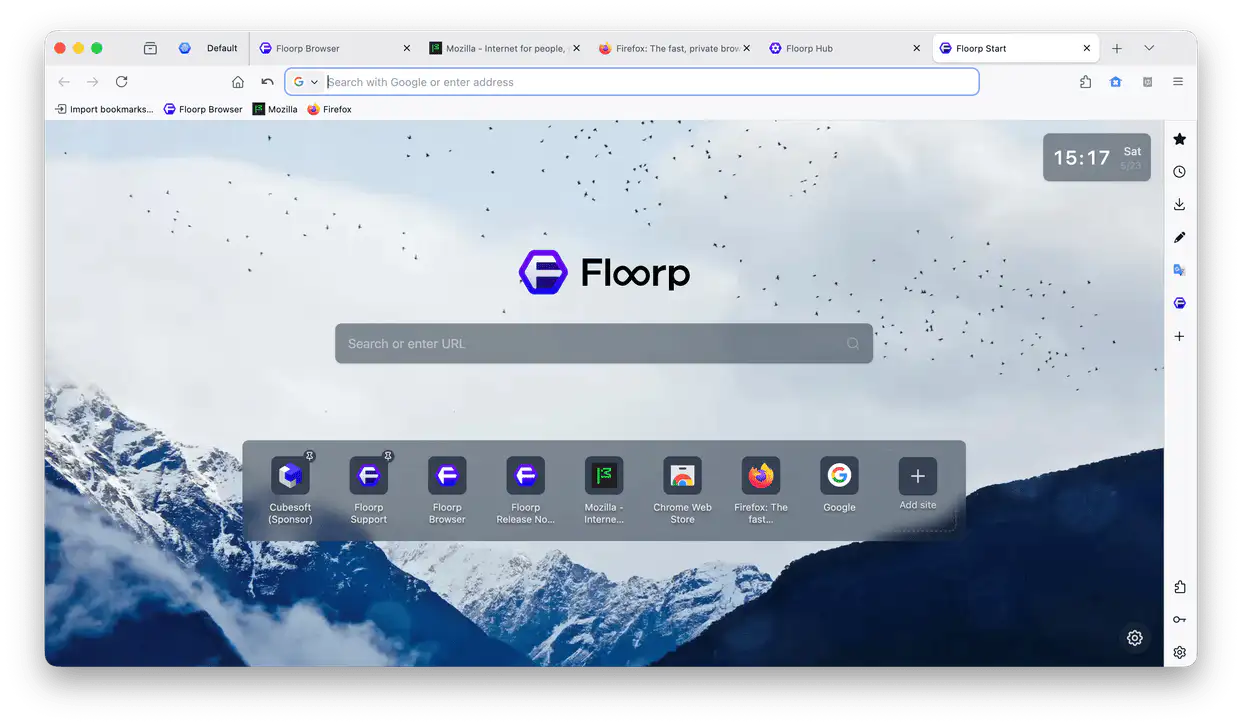
In earlier versions, you could type search queries directly inside the Floorp Start search bar. However, this functionality was removed to reduce code maintenance overhead.
Editing Top Sites
The shortcuts displayed on Floorp Start function similarly to Firefox, automatically populating with your most frequently visited websites.
If you want to manually add your favorite websites, click "Add site" at the very end of the shortcut grid, then input the URL and desired display name.
Once added, you can right-click any shortcut to pin it in place.
If a website you don't like appears, you can unpin it or block it entirely so it never shows up again. You can review and manage your list of blocked websites directly within the Floorp Start settings.
Customizing Display Components
You can choose which elements to display via the Floorp Start configuration panel:
-
Top Sites
Displays your most frequently visited websites, just like in standard Firefox.
-
Clock
Displays the current date, day of the week, and time on your Floorp Start page.
-
Search Bar
Toggles the visibility of the central search bar on Floorp Start.
-
Use Legacy Layout (Like Firefox Home)
Transforms the page layout to closely resemble the standard Firefox new tab page (Firefox Home).
Disabling Floorp Start
You can turn off Floorp Start either within the Floorp Start settings overlay or by navigating to Floorp Hub > Tab & Appearance (about:hub#/features/design) and enabling the "Disable Floorp Start" option. Note that a browser restart is required to apply this change.
Once Floorp Start is disabled, your new tab page will revert to the standard Firefox Home, and the "Home" settings panel will reappear within the main Firefox preferences.
Because Firefox Home configuration options are largely incompatible with Floorp Start, the native "Home" settings panel is hidden as long as Floorp Start remains active.
Configuring Background Images
In addition to the default background images that appear randomly, you can customize the background of Floorp Start by choosing a specific image, a custom image folder, artwork provided by the Floorp team, or selecting no background at all.
If you choose "Random Image" or "Images from Folder," you can also display your backgrounds as a slideshow.
When the slideshow is enabled, the background will automatically cycle over time without requiring you to reload Floorp Start. The slideshow transition interval can be customized down to the second.
Gathering Everything in Floorp Hub
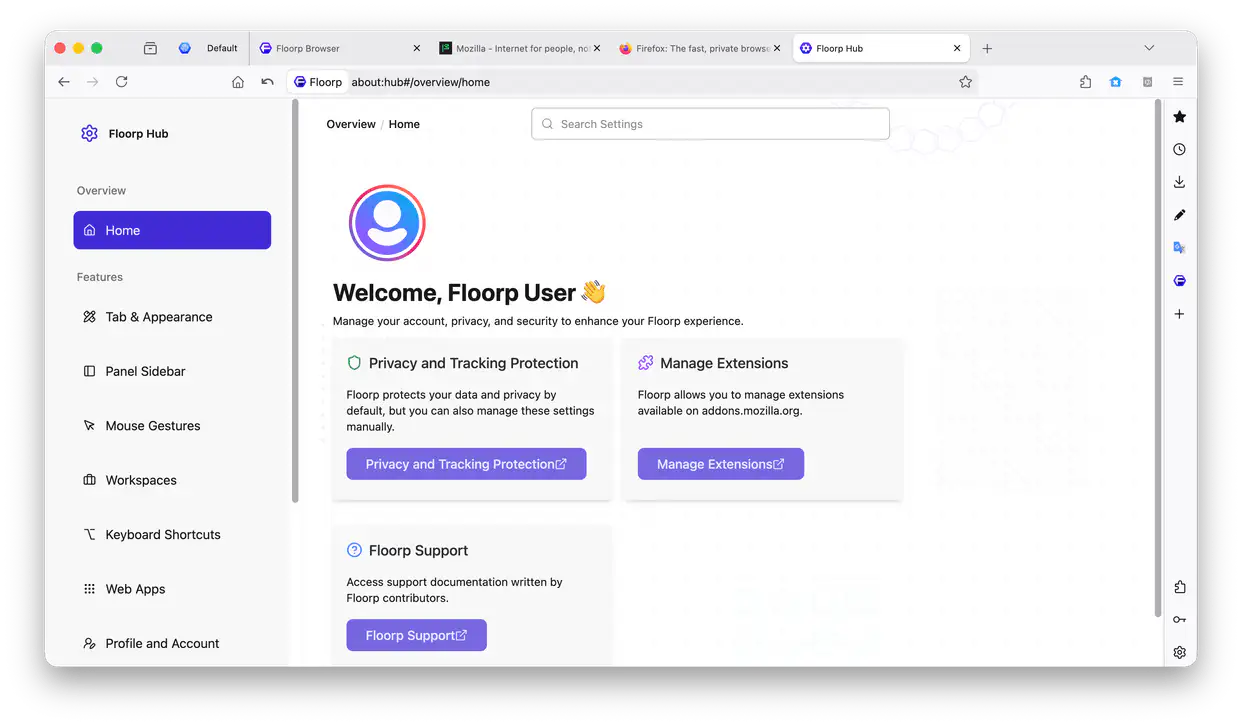
Floorp Hub is a custom configuration page built specifically to gather all Floorp-exclusive preferences in one place.
Up until Floorp 11, Floorp's custom options were mixed into the standard Firefox settings page. This caused confusion regarding which settings belonged to Floorp, and posed a constant risk of the page breaking whenever Firefox received major upstream core updates.
To solve this, we moved all Floorp-specific options to a dedicated internal page. This ensures that the origin of each feature is crystal clear while significantly improving the long-term stability and maintainability of the user interface.
You can access Floorp Hub using any of the following methods:
- Click "Floorp Hub" in the sidebar of the Firefox Settings (
about:preferences). - Click "Open Floorp Hub" at the top of the Firefox Settings (
about:preferences) page. - Open the application menu (the three-line hamburger icon) and select "Floorp Hub".
- Type
about:hubin the address bar and open it.
Finding Settings
Settings within the hub are organized cleanly by feature and category. Simply select a tab from the left sidebar to navigate to your desired configuration panel.
If you already know the name of the feature you are looking for, you can use the search bar at the very top of Floorp Hub to find it instantly.
By clicking "Firefox Settings" in the Floorp Hub sidebar, you can quickly return to the standard Firefox Settings (about:preferences) page.
Participating in Flasco Experiments
Floorp occasionally conducts small-scale, experimental testing for upcoming features. These experimental rollouts are referred to as "Floorp Flasco".
As an experiment progresses through validation phases, its rollout rate is gradually increased until it is eventually integrated into a stable official release. If you prefer to always opt-in or completely opt-out of these tests, you can manually change your participation preference to "Always participate" or "Do not participate" within the settings.