Hide Screen Display
Hiding for Others, Hiding for Yourself
Many people might have the impression that Floorp is a browser packed with information.
While that's not incorrect, did you know that Floorp also provides built-in ways to reduce information overload?
For instance, you might need to show your screen to someone else, only to realize that your open tabs and bookmark bar are filled with personal information.
Or perhaps you want to focus on writing, but the other tabs visible on your screen keep distracting you.
In this article, we will introduce four features designed to help you focus on what matters while respecting your privacy.
Using Share Mode
Share Mode can be enabled by navigating to Menu Bar > Tools.
Once enabled, Share Mode hides your tabs, bookmark bar, and extension icons on the toolbar to prevent your personal data from being accidentally exposed.
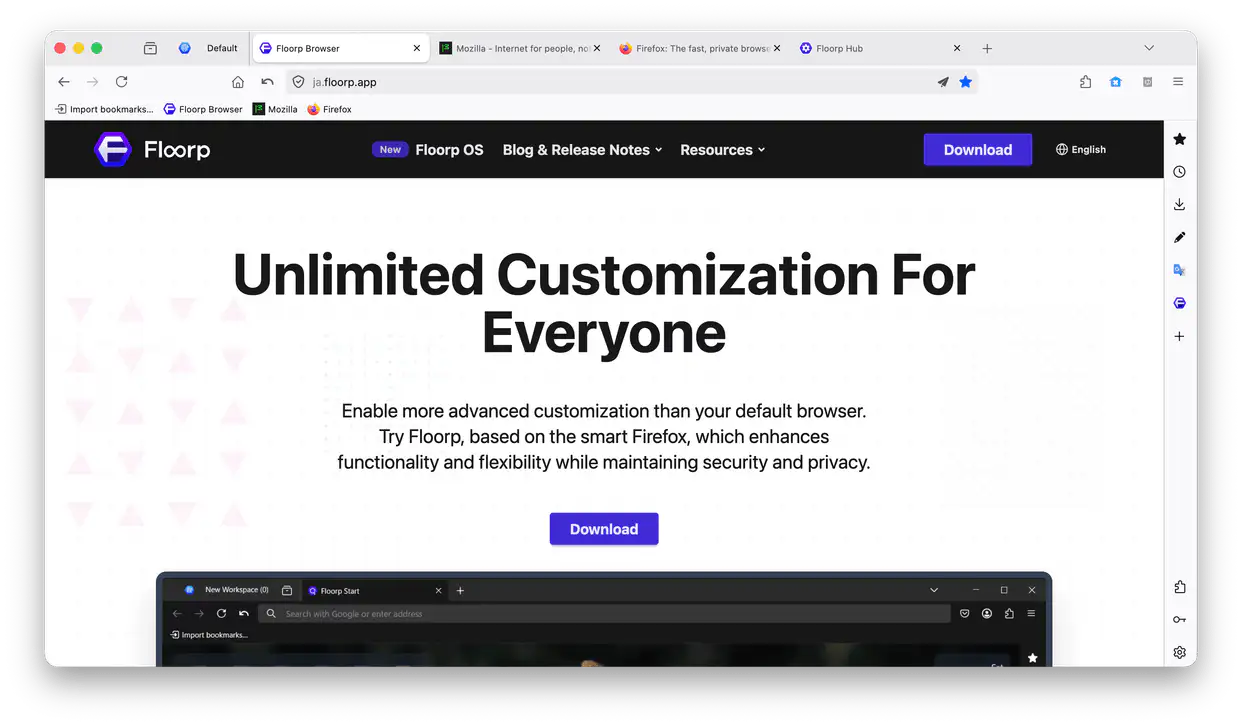
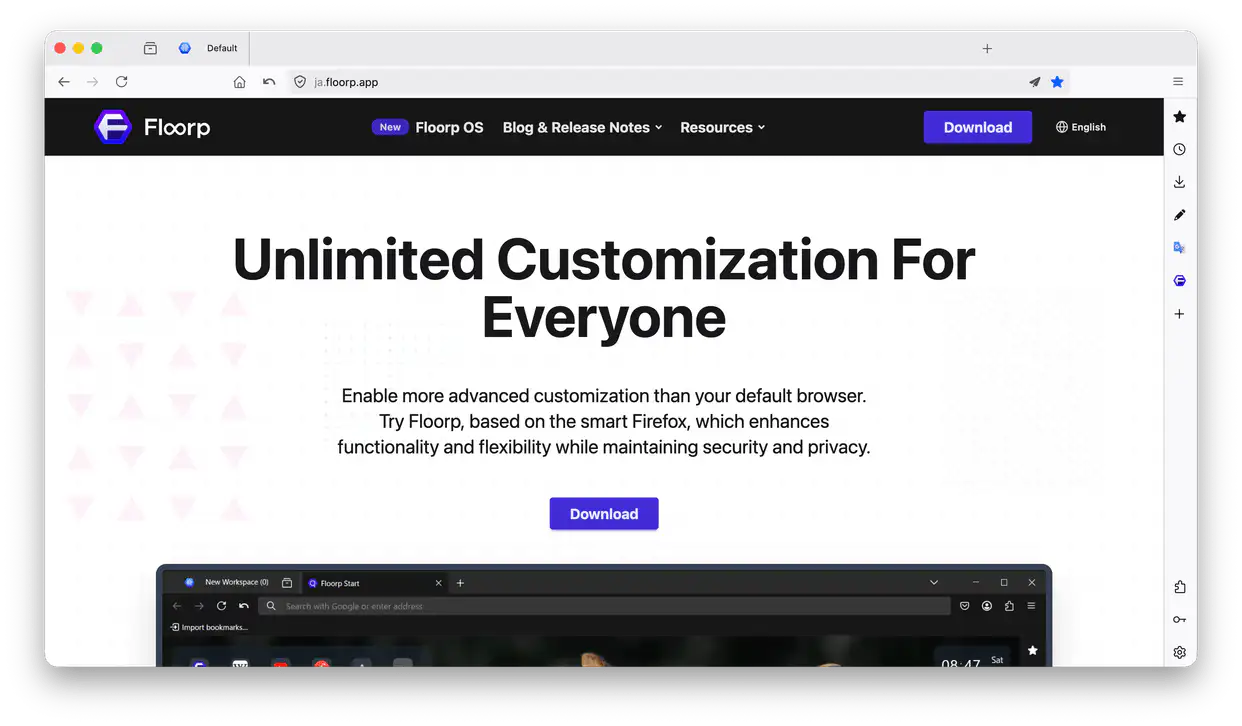
When Share Mode is enabled, the interface changes from the top image to the bottom image.
Using Zen Mode
In addition to Menu Bar > Tools, Zen Mode can also be toggled via keyboard shortcuts, mouse gestures, and the command palette.
When Zen Mode is active, clutter like the tab bar, toolbar, and Panel Sidebar are completely hidden from sight and will only reappear while you hover your mouse cursor over them. Note that certain UI elements may not be affected by Zen Mode.
Using Rest Mode
Rest Mode can be enabled via keyboard shortcuts, mouse gestures, and the command palette.
When Rest Mode is active, everything visible in the window is hidden. You can resume browsing by clicking the button displayed on the screen or pressing the esc key.
Entering Rest Mode unloads all currently open websites. They will be reloaded when you try to access them after resuming.
Hide Interface / Toggle Navigation Bar
Like Rest Mode, these features can be enabled via keyboard shortcuts, mouse gestures, and the command palette.
Enabling "Toggle Navigation Panel" hides the section containing the address bar and the unified extensions button.
Enabling "Hide Interface" hides the horizontal tab bar in addition to the navigation panel. Some elements, such as the Panel Sidebar and the status bar, remain visible even with this feature enabled.