Mouse Gestures
Browsing with Just Your Mouse
Introduced in Floorp 12, the mouse gesture feature allows you to perform various browser actions simply by moving your mouse.
Typically, browsers are operated by clicking buttons or text on the UI. If you are experienced with PCs, you might also make frequent use of keyboard shortcuts.
However, since you already use a mouse to browse web pages, it makes sense that you should be able to operate the browser using only the mouse.
The Mouse Gesture feature in Floorp was developed to meet this exact need.
Unlike traditional UI clicks or keyboard operations, which require finding buttons or pressing multiple keys, Mouse Gestures let you quickly execute actions anywhere on the page simply by moving your mouse.
How to Use Mouse Gestures
You can enable Mouse Gestures by navigating to Floorp Hub > Mouse Gestures (about:hub#/features/gesture).
By default, basic operations (referred to as "Actions") such as Go Back, Go Forward, and Reload are pre-registered.
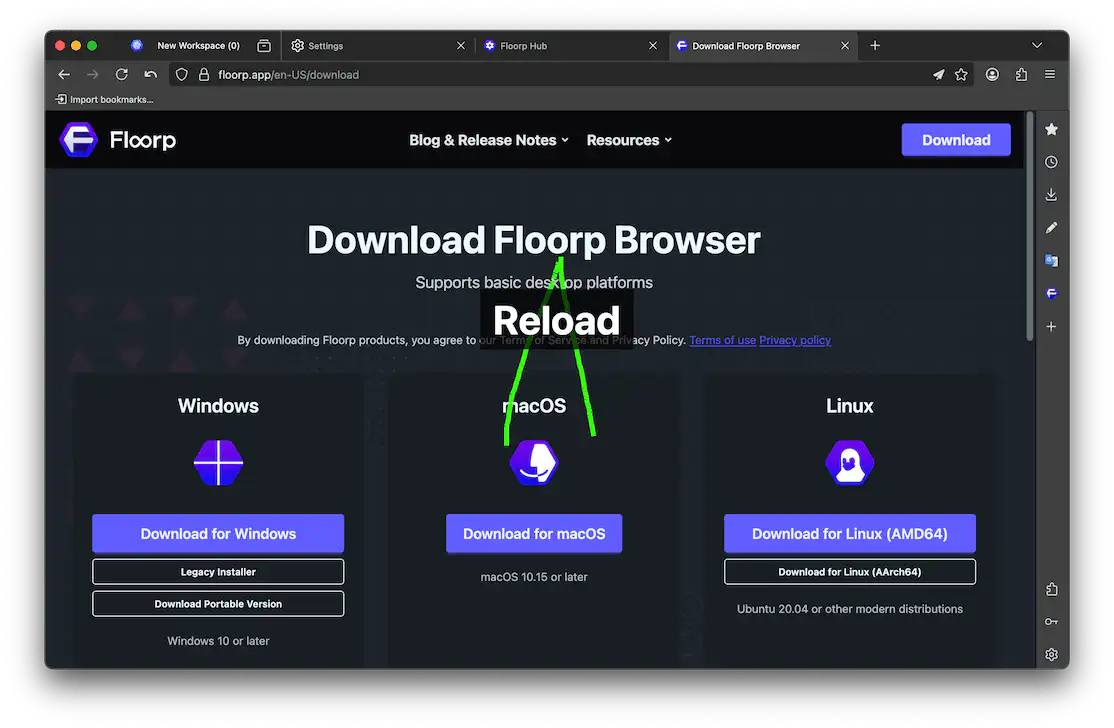
For example, holding down the right-click button, moving the mouse to the left, and releasing it will take you back to the previous page. Holding down the right-click button and moving it up and then down will reload the page.
While performing a gesture, a visual trail of the mouse movement is displayed. When you release the button while the Action name is visible, that Action will be executed.
Customizing Mouse Gestures
You can freely customize both the gestures and the actions they perform.
Set up your favorite gestures to create a comfortable, personalized browsing experience.
Sensitivity Settings
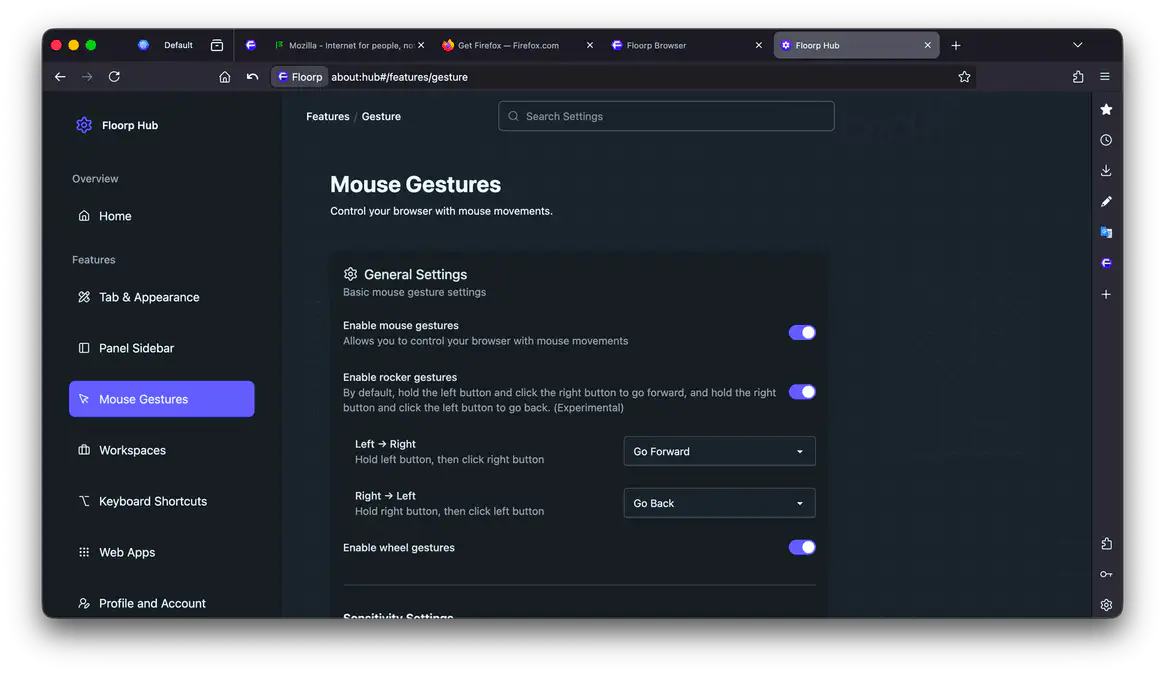
To change Mouse Gesture settings, click "Mouse Gestures" in the Floorp Hub sidebar, or open about:hub#/features/gesture directly.
-
Sensitivity
The higher the value (closer to the right), the more tolerant the feature is of "hand shake" or slight accidental movements during a gesture. The default value is
40. -
Minimum distance
The higher the value (closer to the right), the longer the cursor movement required for it to be recognized as a gesture. The default value is
12px. -
Right-click suppression time
The higher the value (closer to the right), the longer the context menu will be prevented from appearing after a gesture is completed. The default value is
200ms.
Trail Settings
-
Show gesture trail
When enabled, a line is displayed along the path of the mouse cursor during gestures. Enabled by default.
-
Show gesture label
When enabled, the name of the action to be executed by that gesture is displayed on the screen. Enabled by default.
-
Trail width
The higher the value (closer to the right), the thicker the line displayed along the cursor path during gestures. The default value is
6px. -
Trail color
You can customize the color of the line displayed along the cursor path during gestures. The default is
#37ff00(green).You can specify any color by entering a Hex color code, or by clicking the color preview to open your system's color picker.
Customizing Gesture Actions
Gestures and Actions can be added, modified, or deleted as needed. Try setting up your own unique combinations!
-
Add Gesture
Click Add Gesture at the very bottom of the Gesture Action list to create a new gesture. Details are explained in the next section.
-
Edit Gesture
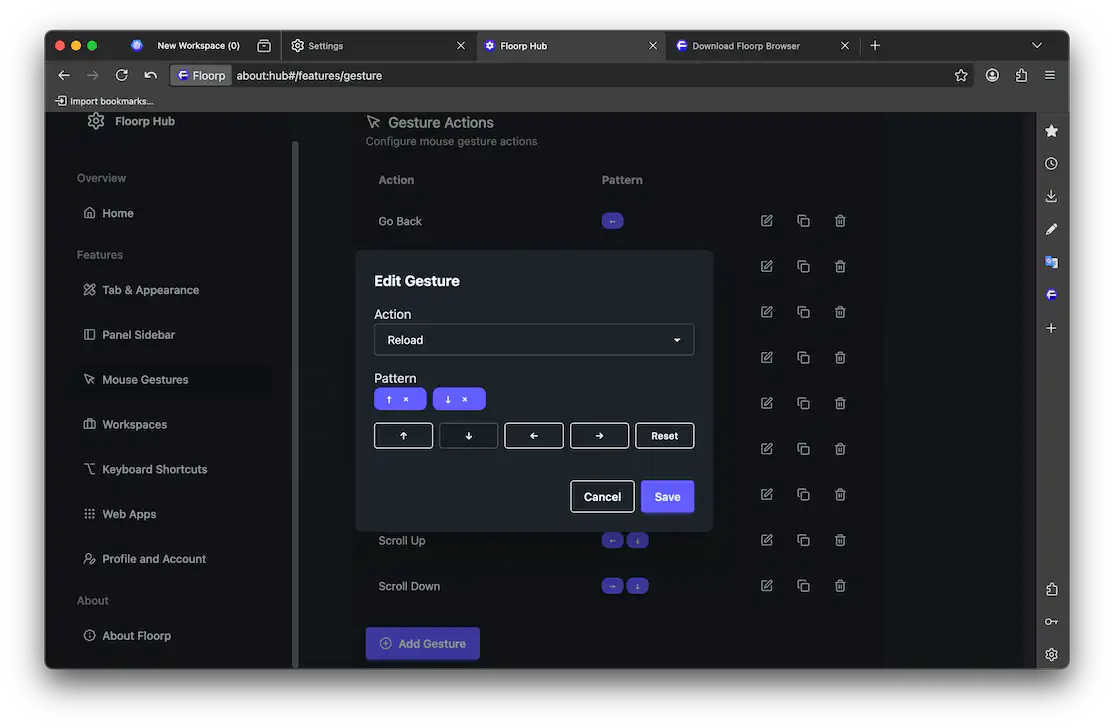
Clicking Add Gesture or the Edit button next to an existing gesture action opens the gesture editing screen.
Open the "Action" dropdown list to select what operation that specific gesture will perform.
Clicking the arrow buttons in the gesture editing screen adds directions to the "Pattern" one by one.
To remove added patterns, click thexbutton to the right of the arrows or click the "Reset" button.Finally, click Save to complete the configuration.
-
Duplicate Gesture
Clicking the second button in a gesture's action row opens a screen to duplicate that exact gesture action. You can then edit and save it as you like.
-
Delete Gesture
Clicking the trash can button in the gesture action row deletes that specific gesture action.
Using Rocker and Wheel Gestures
Rocker Gestures
When Rocker Gestures are enabled, you can execute configured actions by right-clicking while holding down the left-click button, or vice versa.
-
Left → Right
Configures the action executed by right-clicking while holding down the left-click button. By default, it navigates to the next page.
-
Right → Left
Configures the action executed by left-clicking while holding down the right-click button. By default, it navigates to the previous page.
Wheel Gestures
When Wheel Gestures are enabled, you can execute configured actions by moving the scroll wheel while holding down the right-click button.
-
Scroll Up
Configures the action executed by scrolling the wheel up while holding down the right-click button. By default, it switches to the previous tab.
-
Scroll Down
Configures the action executed by scrolling the wheel down while holding down the right-click button. By default, it switches to the next tab.