Floorp Start и Floorp Hub
С чего начинается ваш опыт работы с Floorp
Помните onboarding при первой настройке Floorp?
Среди множества знакомств с функциями вам, возможно, запомнилось объяснение про централизованную страницу настроек под названием «Floorp Hub».
Если вы уже знакомы с Firefox, вас, вероятно, удивил непривычный вид страницы новой вкладки, когда вы впервые открыли её в Floorp.
Floorp включает несколько собственных внутренних страниц, призванных улучшить вашу работу. В этой статье представлены две из основных таких страниц: Floorp Start и Floorp Hub.
Знакомство с Floorp Start
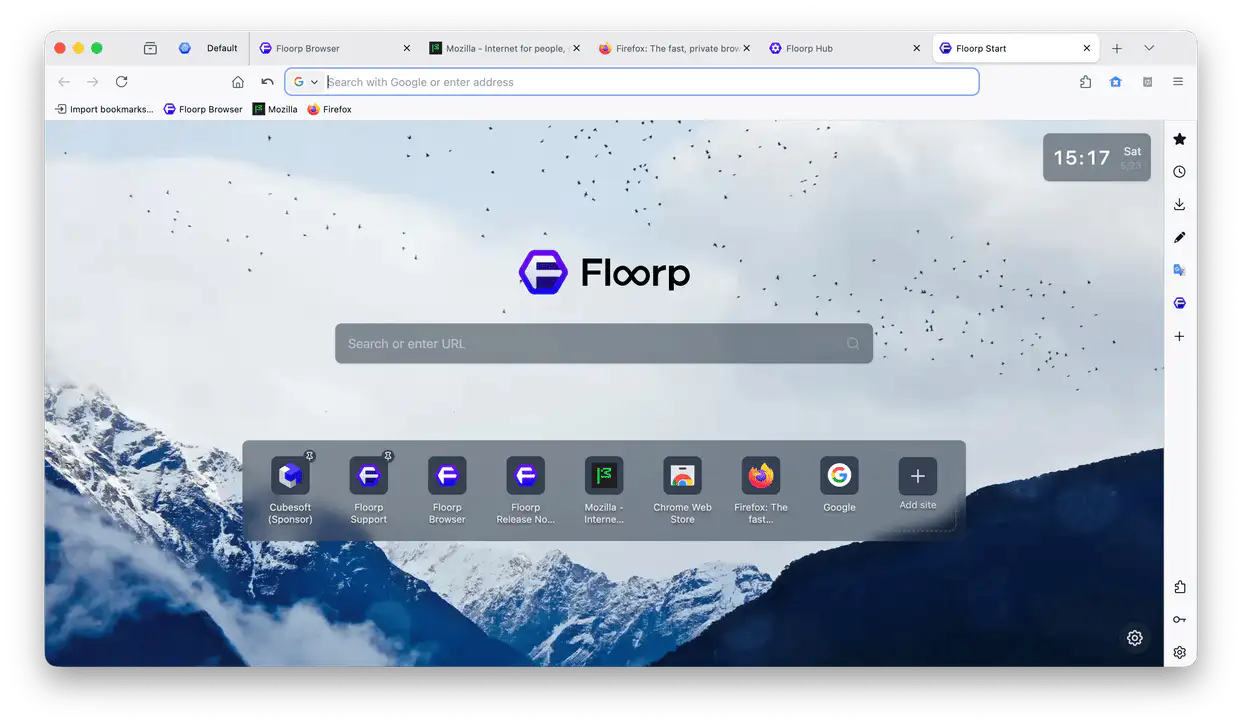
Floorp Start - это страница новой вкладки по умолчанию в Floorp. Её самая заметная особенность - фоновое изображение, которое случайным образом меняется каждый раз, когда вы открываете новую вкладку.
Нажатие на строку поиска в центре страницы автоматически переводит фокус на основную адресную строку в верхней части окна браузера.
Чтобы открыть панель настроек Floorp Start, просто нажмите на значок шестерёнки в правом нижнем углу страницы.
В более ранних версиях можно было вводить поисковые запросы прямо в строке поиска Floorp Start. Однако эту возможность убрали, чтобы снизить нагрузку на поддержку кода.
Редактирование топа сайтов
Ярлыки, отображаемые на Floorp Start, работают так же, как в Firefox, и автоматически заполняются вашими наиболее посещаемыми сайтами.
Если вы хотите вручную добавить любимые сайты, нажмите «Добавить сайт» в самом конце сетки ярлыков, затем введите URL и желаемое отображаемое имя.
После добавления можно нажать правой кнопкой мыши на любой ярлык, чтобы закрепить его на месте.
Если появился сайт, который вам не нравится, его можно открепить или полностью заблокировать, чтобы он больше не появлялся. Просмотреть список заблокированных сайтов и управлять им можно прямо в настройках Floorp Start.
Настройка отображаемых элементов
Через панель настроек Floorp Start можно выбрать, какие элементы отображать:
-
Топ сайтов
Отображает ваши наиболее посещаемые сайты, как в стандартном Firefox.
-
Часы
Отображают текущую дату, день недели и время на странице Floorp Start.
-
Строка поиска
Переключает видимость центральной строки поиска на Floorp Start.
-
Использовать устаревшую раскладку (как Firefox Home)
Изменяет раскладку страницы так, чтобы она была максимально похожа на стандартную страницу новой вкладки Firefox (Firefox Home).
Отключение Floorp Start
Отключить Floorp Start можно либо в панели настроек самого Floorp Start, либо перейдя в Floorp Hub > Вкладки и внешний вид (about:hub#/features/design) и включив параметр «Отключить начальную страницу Floorp». Учтите, что для применения изменения требуется перезапуск браузера.
После отключения Floorp Start страница новой вкладки вернётся к стандартной Firefox Home, а в основных настройках Firefox снова появится панель настроек «Главная».
Поскольку параметры настройки Firefox Home в основном несовместимы с Floorp Start, встроенная панель настроек «Главная» скрыта, пока Floorp Start активна.
Настройка фоновых изображений
Помимо стандартных фоновых изображений, появляющихся случайным образом, фон Floorp Start можно настроить, выбрав конкретное изображение, собственную папку с изображениями, оформление от команды Floorp или вообще отказавшись от фона.
Если выбрать «Случайное изображение» или «Изображения из папки», фоны можно также отображать в виде слайд-шоу.
Когда слайд-шоу включено, фон будет автоматически меняться со временем без необходимости перезагружать Floorp Start. Интервал смены в слайд-шоу можно настроить с точностью до секунды.
Всё в одном месте - Floorp Hub
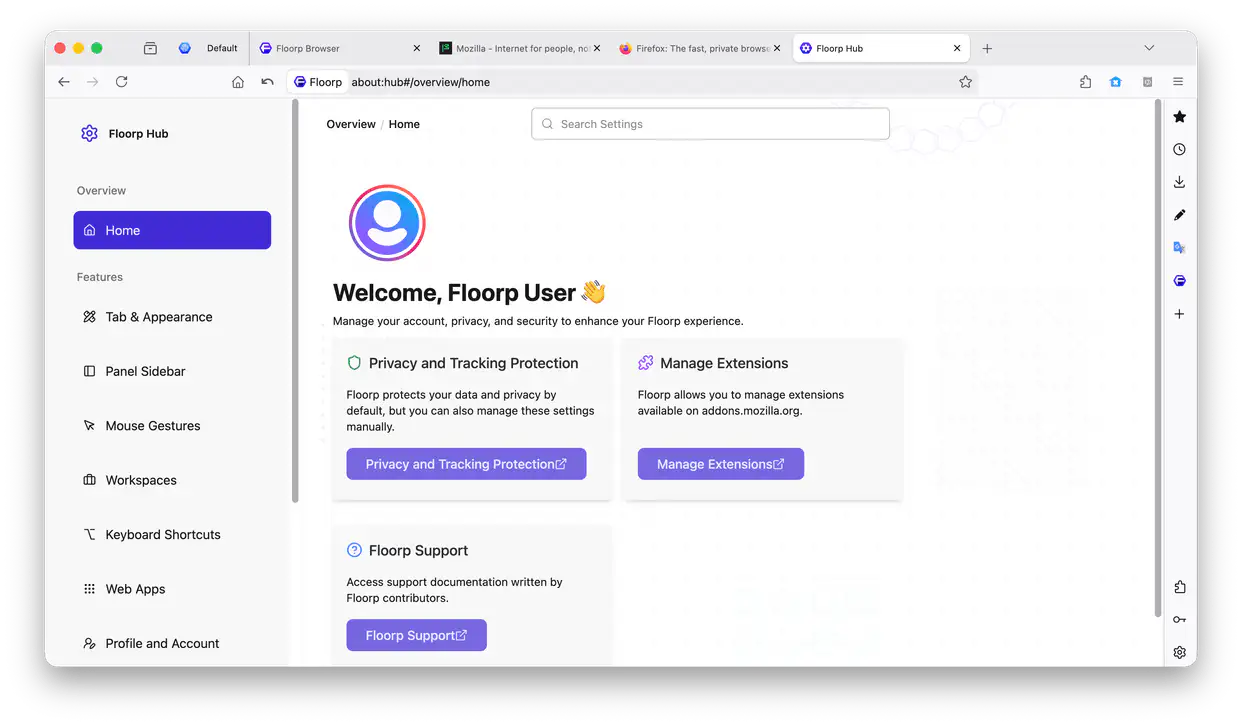
Floorp Hub - это собственная страница настроек, созданная специально для того, чтобы собрать все эксклюзивные параметры Floorp в одном месте.
Вплоть до Floorp 11 собственные параметры Floorp были вперемешку со стандартной страницей настроек Firefox. Это вызывало путаницу в том, какие настройки относятся к Floorp, и создавало постоянный риск поломки страницы при крупных обновлениях ядра Firefox со стороны upstream.
Чтобы решить это, мы перенесли все специфичные для Floorp параметры на отдельную внутреннюю страницу. Благодаря этому источник каждой функции предельно ясен, а долгосрочная стабильность и удобство поддержки интерфейса значительно выросли.
Открыть Floorp Hub можно любым из следующих способов:
- Нажать «Floorp Hub» в боковой панели настроек Firefox (
about:preferences). - Нажать «Открыть Floorp Hub» в верхней части страницы настроек Firefox (
about:preferences). - Открыть меню приложения (значок-гамбургер из трёх полос) и выбрать «Floorp Hub».
- Ввести
about:hubв адресной строке и открыть.
Поиск настроек
Настройки внутри хаба аккуратно разбиты по функциям и категориям. Просто выберите вкладку в левой боковой панели, чтобы перейти к нужной панели настроек.
Если вы уже знаете название нужной функции, найти её мгновенно можно через строку поиска в самом верху Floorp Hub.
Нажав «Настройки Firefox» в боковой панели Floorp Hub, можно быстро вернуться к стандартной странице настроек Firefox (about:preferences).
Участие в экспериментах Flasco
Floorp время от времени проводит небольшое экспериментальное тестирование будущих функций. Такие экспериментальные развёртывания называются «Floorp Flasco».
По мере прохождения эксперимента через этапы проверки его доля развёртывания постепенно увеличивается, пока функция в итоге не войдёт в стабильный официальный релиз. Если вы предпочитаете всегда участвовать в таких тестах или полностью от них отказаться, можно вручную изменить настройку участия на «Всегда участвовать» или «Никогда не участвовать».