Горячие клавиши и командная палитра
Управление браузером с одной лишь клавиатуры
Floorp позволяет переопределять существующие сочетания клавиш на нужные вам действия или назначать совершенно новые.
Необходимость тянуться к мыши во время набора текста сбивает рабочий процесс, и многих пользователей это раздражает.
Представьте, насколько плавной была бы работа, если бы каждое действие в браузере можно было выполнять только с клавиатуры. Floorp пока не достиг этой абсолютной вершины, но мы стремимся помочь вам подойти к ней как можно ближе. Настраиваемые сочетания клавиш и командная палитра - важные шаги к этой цели.
Настройка сочетаний клавиш
Настройка через Floorp Hub
Перейдите в Floorp Hub > Горячие клавиши (about:hub#/features/shortcuts), чтобы увидеть полный список действий, доступных для назначения сочетаний.
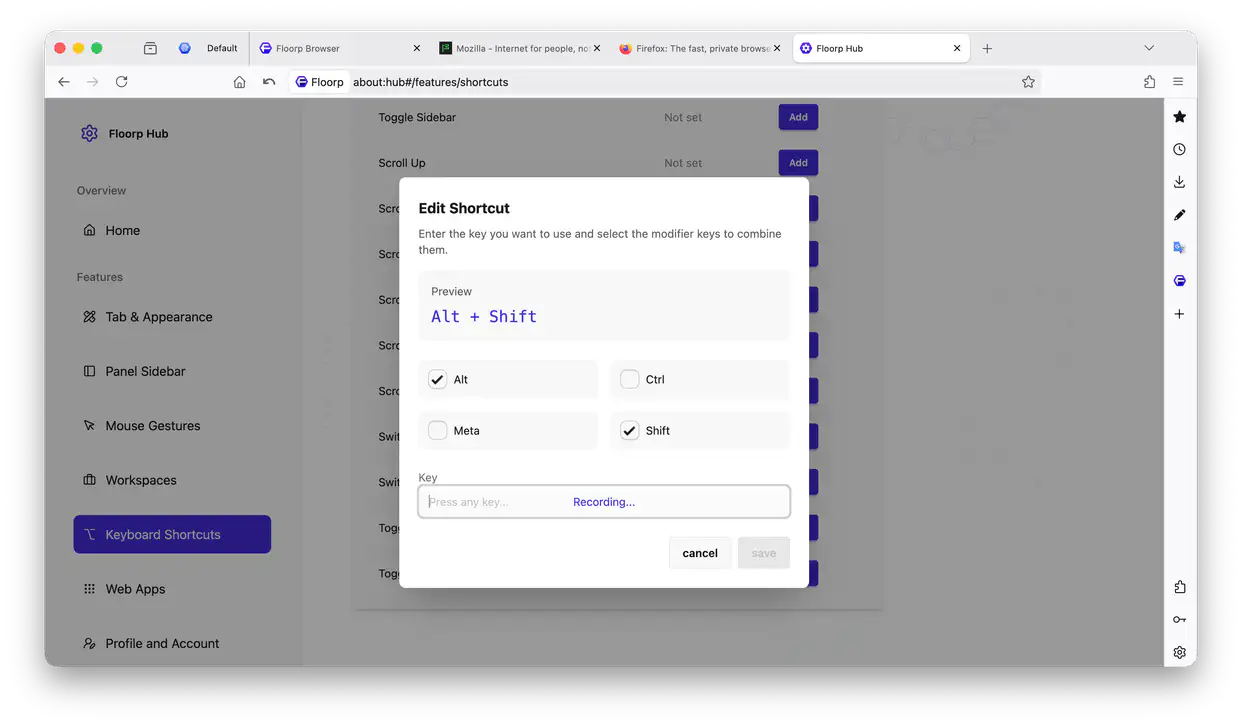
Найдите действие, которое хотите изменить, и нажмите «Добавить» или «Изменить», чтобы открыть панель настройки сочетания.
Собрать своё сочетание можно, выбрав клавиши-модификаторы с помощью кнопок сверху и введя символ в поле ниже.
В зависимости от операционной системы и конфигурации названия клавиш-модификаторов могут отображаться в обобщённом виде.
-
Клавиши-модификаторы в macOS
В macOS клавиша
Altсоответствует клавишеOption, а клавишаMeta- клавишеCommand. -
Клавиши-модификаторы в Windows
В Windows клавиша
Metaсоответствует клавишеWindows.
Подавляющее большинство действий, доступных для сочетаний клавиш, жестов мышью и командной палитры, используют одну и ту же базовую систему..
Это значит, что большинство действий, которые можно назначить на сочетание клавиш, также можно вызвать жестом мыши или найти в командной палитре.
Настройка через экспериментальные функции Firefox
Firefox сейчас тестирует собственную встроенную функцию настройки сочетаний клавиш.
Получить к ней доступ можно по адресу about:keyboard, где отображается список настраиваемых действий. Нажмите «Change», чтобы ввести новое сочетание, или «Clear», чтобы сбросить его к состоянию по умолчанию.
Страница about:keyboard может конфликтовать со встроенной системой сочетаний клавиш Floorp. Если действие доступно и в Floorp Hub, и в about:keyboard, настоятельно рекомендуем использовать только что-то одно, чтобы избежать непредсказуемого поведения.
Использование командной палитры
Чтобы пользоваться командной палитрой, должны быть включены либо сочетания клавиш, либо жесты мышью.
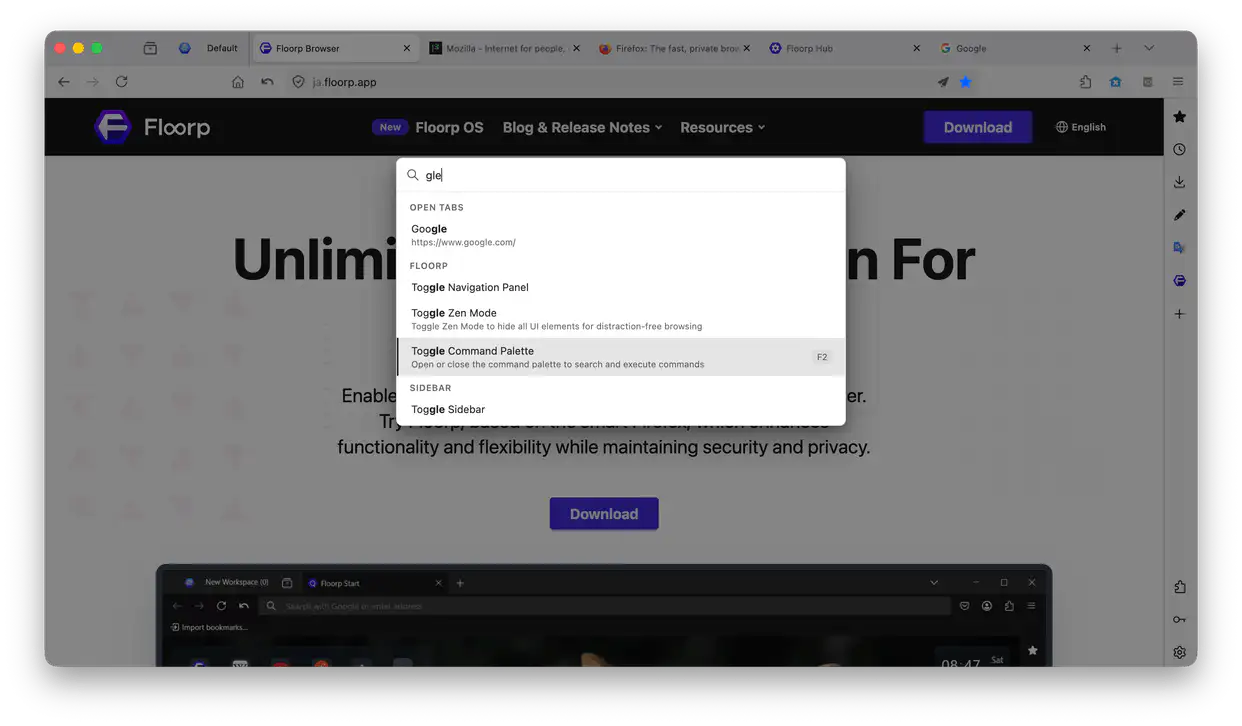
Когда сочетания клавиш активны, командная палитра по умолчанию назначена на клавишу F2.
Просто начните вводить текст для поиска действия, перемещайтесь по результатам стрелками или мышью и нажмите Enter, чтобы выполнить действие. В зависимости от конкретного действия иногда может потребоваться несколько последовательных вводов.