Боковая панель
Сайты, которые всегда под рукой
Боковая панель - это уникальная боковая панель Floorp, позволяющая быстро открывать сохранённые сайты в компактном разделённом виде. Раньше она называлась Browser Manager Sidebar.
Представьте, что вы играете в игру, читая руководство по прохождению, или пишете статью, держа рядом инструмент перевода.
В такие моменты разделённая раскладка невероятно удобна. К счастью, в Firefox есть встроенная функция разделённого просмотра.
Но что, если обычно вы предпочитаете видеть только основной сайт, а разделённый вид нужен лишь изредка, по необходимости? Настраивать разделённый просмотр каждый раз заново может быть утомительно.
Вот тут на помощь и приходит боковая панель Floorp. Сохранив часто используемые сайты в боковую панель, вы сможете мгновенно открыть их в разделённой раскладке одним кликом, когда понадобится.
Боковая панель содержит веб-панели, ярлыки для настроек и расширений, а в некоторых конфигурациях - ваши рабочие пространства.
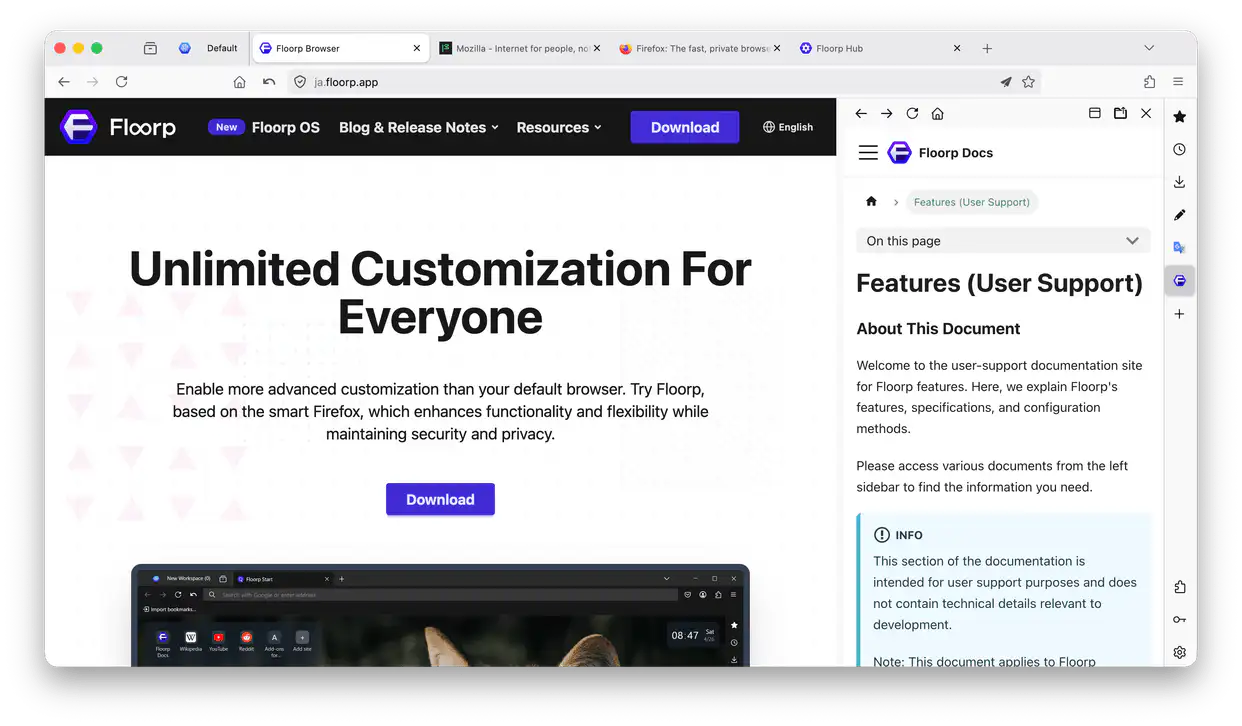
Боковая панель - это отдельная функция, полностью независимая от встроенной боковой панели Firefox.
Добавление и редактирование веб-панелей
Нажатие кнопки + внизу списка веб-панелей открывает интерфейс создания панели.
Для более тонкой настройки используйте Floorp Hub > Боковая панель (about:hub#/features/sidebar).
-
Тип панели
-
Веб-страница
Добавляет обычный сайт.
Указание «Контейнера» гарантирует, что эта веб-панель всегда будет открываться именно в этом контейнерном окружении. Подробнее о вкладках-контейнерах см. в официальной документации Mozilla.
Включение «Использовать пользовательский агент мобильного устройства» заставляет Floorp сообщать сайту, что это мобильное устройство. Это часто переключает страницу на мобильную раскладку, но учтите, что некоторые сайты могут не измениться или показывать мобильную раскладку независимо от этой настройки.
-
Боковая панель инструментов
Добавляет внутренние страницы Floorp. Начиная с версии 12.14.2, доступны: Инструмент управления браузером, Закладки, История, Загрузки и Заметки.
-
Боковая панель расширений
Добавляет страницы из установленных расширений. Учтите, что некоторые расширения могут не поддерживать отображение в боковой панели.
-
-
Адрес веб-страницы
Этот URL будет начальной страницей, загружаемой при открытии панели. Если добавить панель напрямую через кнопку боковой панели, адрес текущей активной вкладки подставится автоматически.
-
Значок
Настраивается только в Floorp Hub. Позволяет указать прямую ссылку на изображение для значка панели. В большинстве случаев Floorp получит favicon сайта автоматически, даже если поле оставлено пустым.
примечаниеВ Floorp 11 был параметр настройки поставщика значков, но в Floorp 12 эта настройка удалена.
-
Ширина (px)
Панель изначально откроется с этой шириной. Если задать
0, вместо неё будет использована «Глобальная ширина веб-панели» (см. ниже). -
Уровень масштаба
Настраивается только в Floorp Hub и применяется исключительно к панелям типа «Веб-страница».
Значение по умолчанию —
1.0. Увеличение этого значения отображает страницу в приближённом виде. -
Редактирование / удаление
В списке панелей в Floorp Hub > Боковая панель (
about:hub#/features/sidebar) нажатие на значок карандаша позволяет отредактировать панель, а на значок корзины — удалить её.
Изменение настроек боковой панели
-
Выгрузка при закрытии панели
Когда включено, веб-страница автоматически выгружается из памяти, как только вы закрываете панель. При следующем открытии она загрузится заново.
-
Положение боковой панели
Меняет физическое положение боковой панели. По умолчанию она расположена справа.
-
Глобальная ширина веб-панели
Когда ширина отдельной веб-панели задана как
0, вместо неё применяется ширина, заданная здесь. Это удобно, если вы хотите, чтобы несколько веб-панелей имели единую ширину по умолчанию.
Использование панели инструментов панели
-
Назад / Вперёд / Обновить
Перемещение по истории страницы или её обновление. Работают так же, как основные кнопки навигации браузера.
-
Главная страница
Перезагружает и возвращает к начальному URL, заданному для этой панели.
-
Плавающая боковая панель
Накладывает веб-панель поверх основной веб-страницы, позволяя свободно перемещать и менять её размер. Повторное нажатие кнопки возвращает панель к обычной разделённой раскладке.
-
Открыть в новой вкладке
Открывает страницу, загруженную в веб-панели, как обычную вкладку браузера.
-
Закрыть
Скрывает панель. Веб-страница остаётся загруженной в фоне.
Однако, если включена «Выгрузка при закрытии панели», страница будет закрыта и выгружена сразу при скрытии.
Контекстное меню панели
Нажатие правой кнопкой мыши на кнопку панели открывает контекстное меню с особыми параметрами. Больше всего настроек у веб-панелей.
-
Выгрузить эту веб-панель
Выгружает веб-страницу из памяти. При следующем открытии она загрузится заново.
-
Включить/выключить звук этой веб-панели
Переключает вывод звука для конкретной панели, позволяя мгновенно заглушить фоновый шум.
-
Изменить уровень масштаба
Позволяет увеличить или уменьшить отображаемый размер страницы внутри панели.
-
Переключить пользовательский агент на мобильную/десктопную версию для этой веб-панели
Заставляет Floorp сообщать сайту, что это мобильное устройство. Это часто переключает страницу на мобильную раскладку, но учтите, что некоторые сайты могут не измениться или показывать мобильную раскладку независимо от этой настройки.
-
Удалить эту панель
Удаляет панель из списка ярлыков боковой панели. Это действие нельзя отменить.