Жесты мышью
Управление браузером с одной лишь мыши
Появившаяся в Floorp 12 функция жестов мышью позволяет выполнять различные действия в браузере простым движением мыши.
Обычно браузером управляют, нажимая на кнопки или текст в интерфейсе. Если вы опытный пользователь ПК, то наверняка часто пользуетесь и сочетаниями клавиш.
Но раз вы и так используете мышь для просмотра веб-страниц, логично, что и сам браузер можно было бы контролировать одной лишь мышью.
Именно для этого в Floorp и была разработана функция жестов мышью.
В отличие от привычных кликов по интерфейсу или работы с клавиатурой, где нужно искать кнопки или нажимать несколько клавиш, жесты мышью позволяют быстро выполнять действия в любом месте страницы простым движением мыши.
Как пользоваться жестами мышью
Включить жесты мышью можно, перейдя в Floorp Hub > Жесты мышью (about:hub#/features/gesture).
По умолчанию уже заданы базовые операции (называемые «действиями»), такие как Вернуться назад, Перейти вперёд и Обновить.
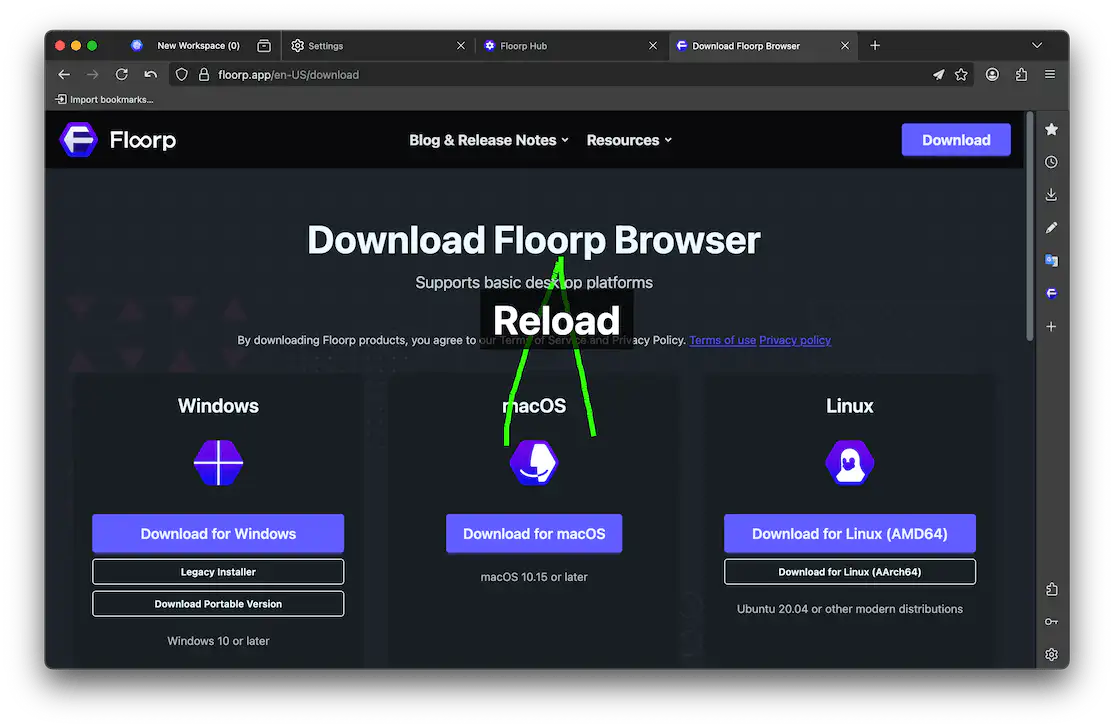
Например, если зажать правую кнопку мыши, переместить мышь влево и отпустить, вы вернётесь на предыдущую страницу. Если зажать правую кнопку и двинуть мышь вверх, а затем вниз - страница обновится.
Во время выполнения жеста отображается визуальный след движения мыши. Когда вы отпускаете кнопку при видимом названии действия, это действие выполняется.
Настройка жестов мышью
Вы можете свободно настраивать как сами жесты, так и действия, которые они выполняют.
Задайте любимые жесты, чтобы сделать работу с браузером удобной и персональной.
Настройки чувствительности
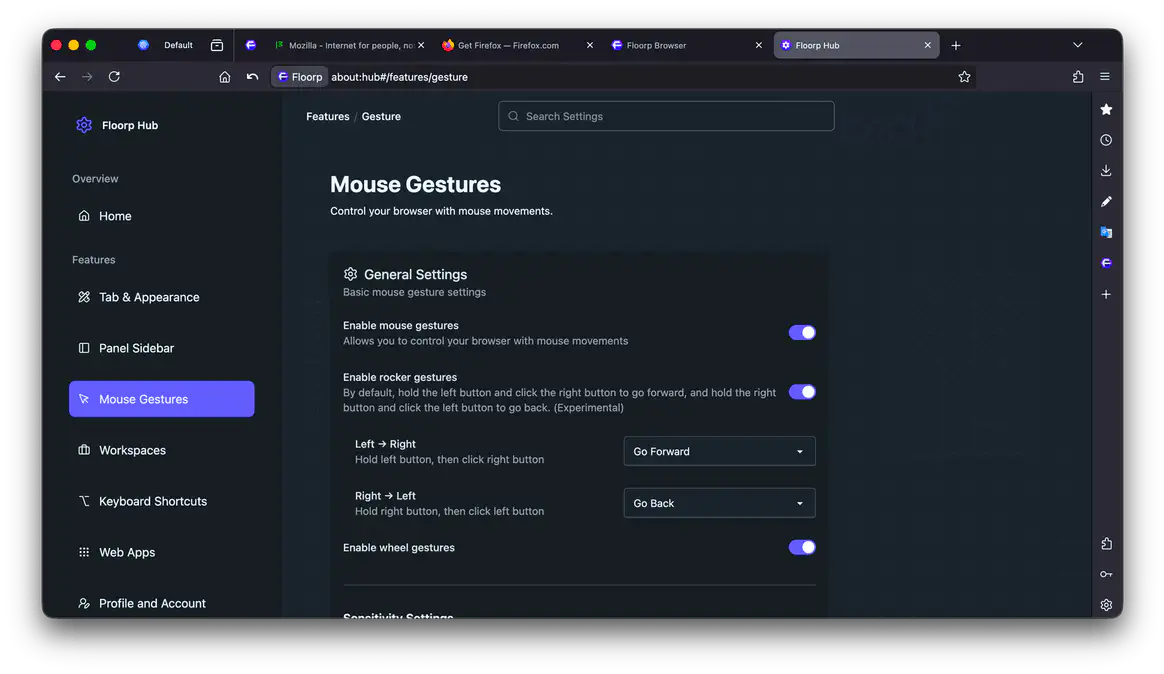
Чтобы изменить настройки жестов мышью, нажмите «Жесты мышью» в боковой панели Floorp Hub или откройте about:hub#/features/gesture напрямую.
-
Чувствительность
Чем выше значение (ближе к правому краю), тем терпимее функция к «дрожанию руки» и небольшим случайным движениям во время жеста. Значение по умолчанию -
40. -
Минимальное расстояние
Чем выше значение (ближе к правому краю), тем большее перемещение курсора требуется для распознавания жеста. Значение по умолчанию -
12px. -
Время подавления правой кнопки мыши
Чем выше значение (ближе к правому краю), тем дольше после завершения жеста подавляется появление контекстного меню. Значение по умолчанию -
200ms.
Настройки следа
-
Показать след от жеста
Когда включено, во время жеста вдоль траектории курсора отображается линия. Включено по умолчанию.
-
Показать метку жеста
Когда включено, на экране отображается название действия, которое выполнит этот жест. Включено по умолчанию.
-
Ширина следа
Чем выше значение (ближе к правому краю), тем толще линия, отображаемая вдоль траектории курсора во время жеста. Значение по умолчанию -
6px. -
Цвет следа
Вы можете настроить цвет линии, отображаемой вдоль траектории курсора во время жеста. По умолчанию -
#37ff00(зелёный).Указать любой цвет можно, введя его Hex-код или нажав на предпросмотр цвета, чтобы открыть системную палитру.
Настройка действий жестов
Жесты и действия можно добавлять, изменять и удалять по необходимости. Попробуйте задать собственные уникальные комбинации!
-
Добавить жест
Нажмите Добавить жест в самом низу списка действий жестов, чтобы создать новый жест. Подробности - в следующем разделе.
-
Изменить жест
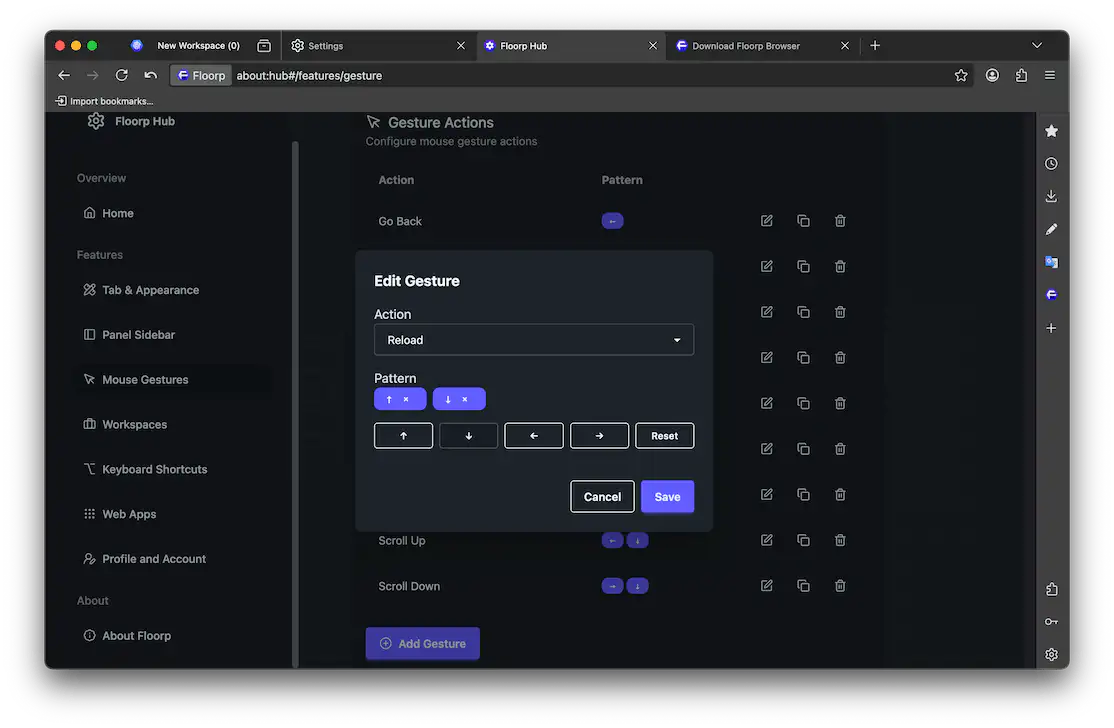
Нажатие Добавить жест или кнопки Редактировать рядом с существующим действием жеста открывает экран редактирования жеста.
Откройте выпадающий список «Действие», чтобы выбрать, какую операцию будет выполнять этот жест.
Нажатие кнопок со стрелками на экране редактирования жеста по очереди добавляет направления в «Шаблон».
Чтобы убрать добавленные шаблоны, нажмите кнопкуxсправа от стрелок или кнопку «Сброс».Наконец, нажмите Сохранить, чтобы завершить настройку.
-
Дублировать жест
Нажатие второй кнопки в строке действия жеста открывает экран для дублирования именно этого действия. Затем его можно отредактировать и сохранить по своему усмотрению.
-
Удалить жест
Нажатие кнопки с корзиной в строке действия жеста удаляет именно это действие.
Использование жестов рокера
Когда жесты рокера включены, можно выполнять заданные действия, нажимая правую кнопку мыши при зажатой левой - или наоборот.
-
Left → Right
Задаёт действие, выполняемое при нажатии правой кнопки мыши с зажатой левой. По умолчанию - переход на следующую страницу.
-
Right → Left
Задаёт действие, выполняемое при нажатии левой кнопки мыши с зажатой правой. По умолчанию - переход на предыдущую страницу.